Overview
The Polling App is perfect for live on-air interaction. Use it to ask your audience a question and get real-time results. It's fun, fast, and keeps listeners engaged.
Note: Each phone number can vote once per poll.
How to Add the Polling App
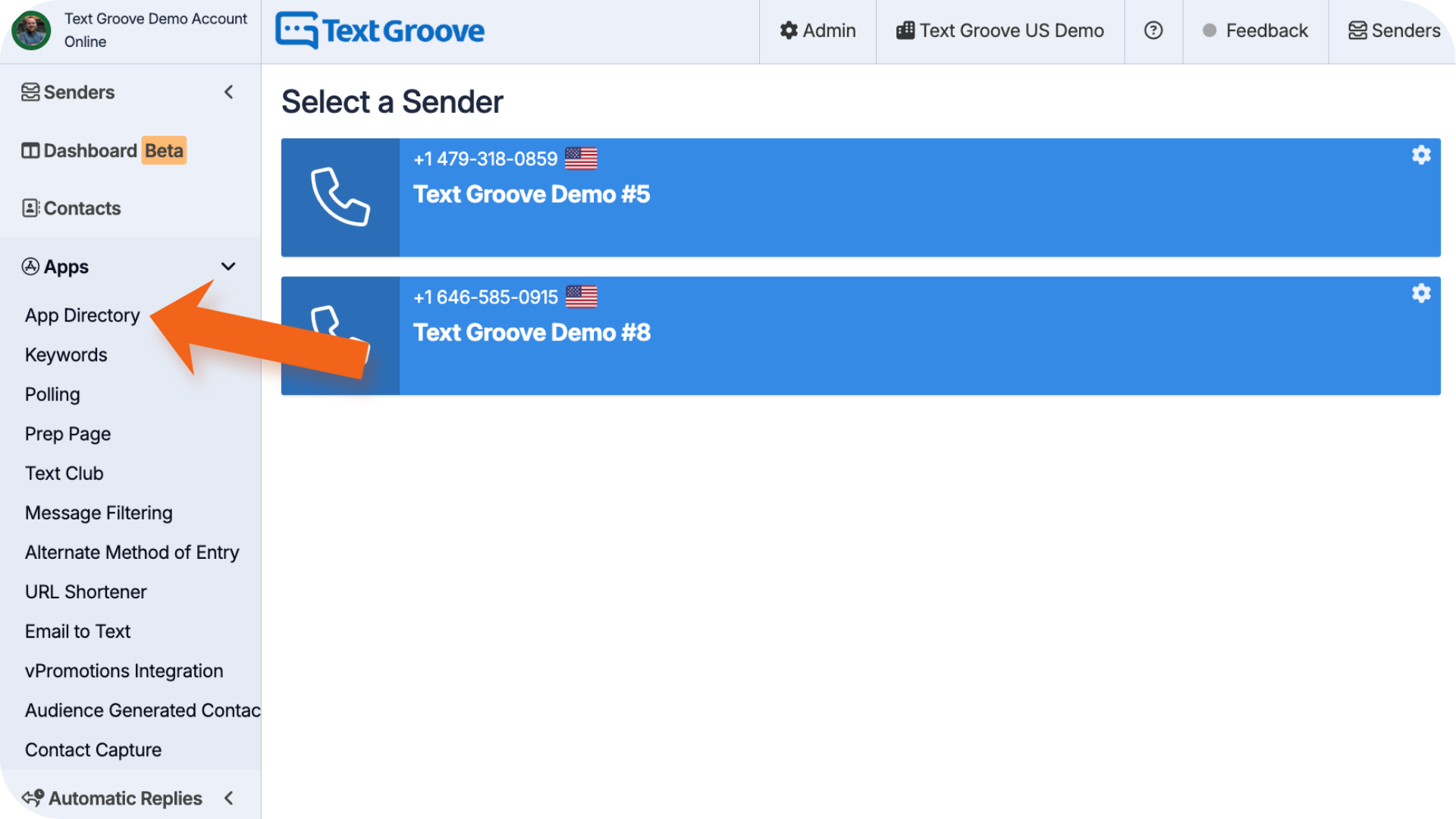
- Go to the App Directory in your Text Groove dashboard.
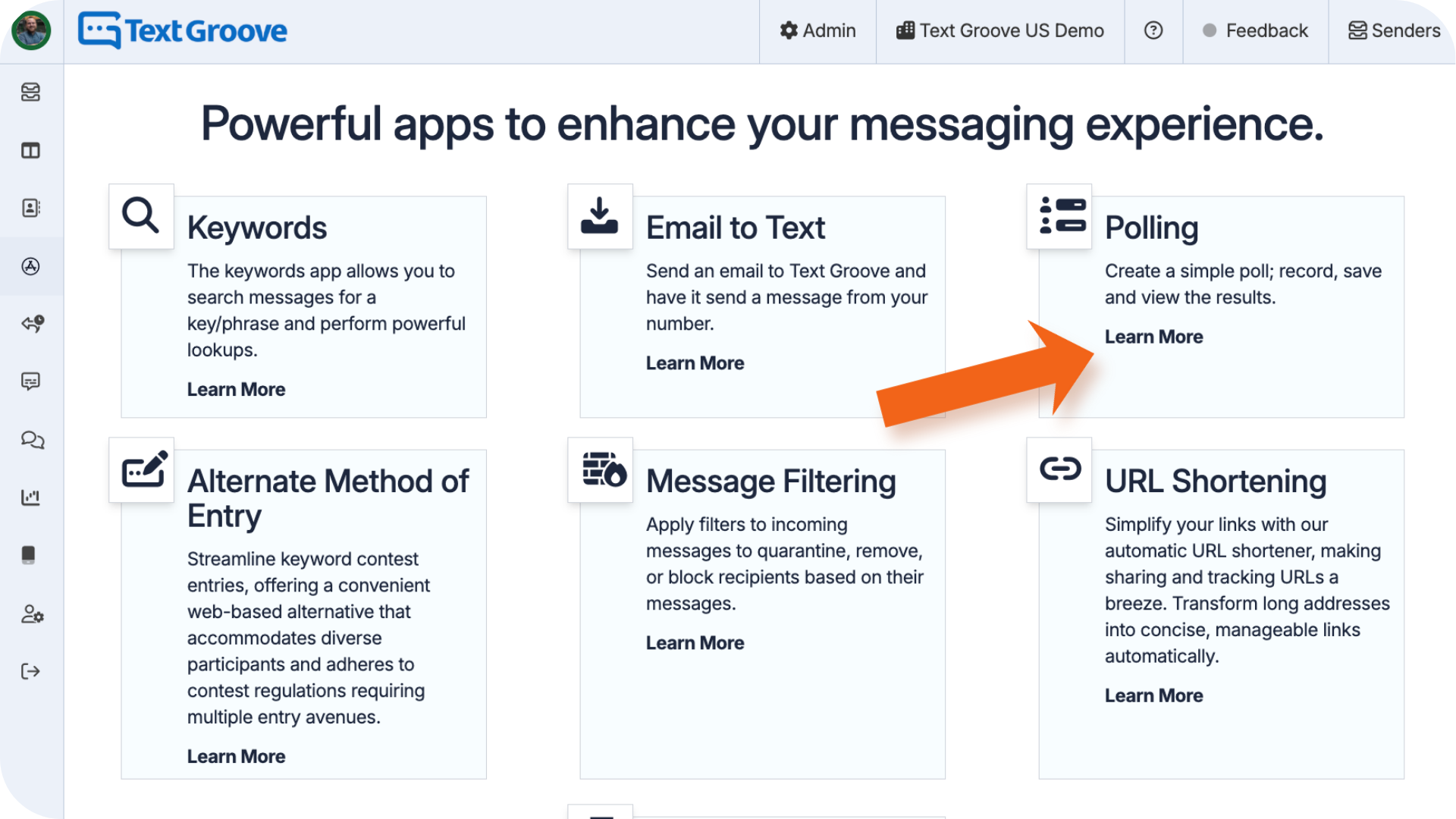
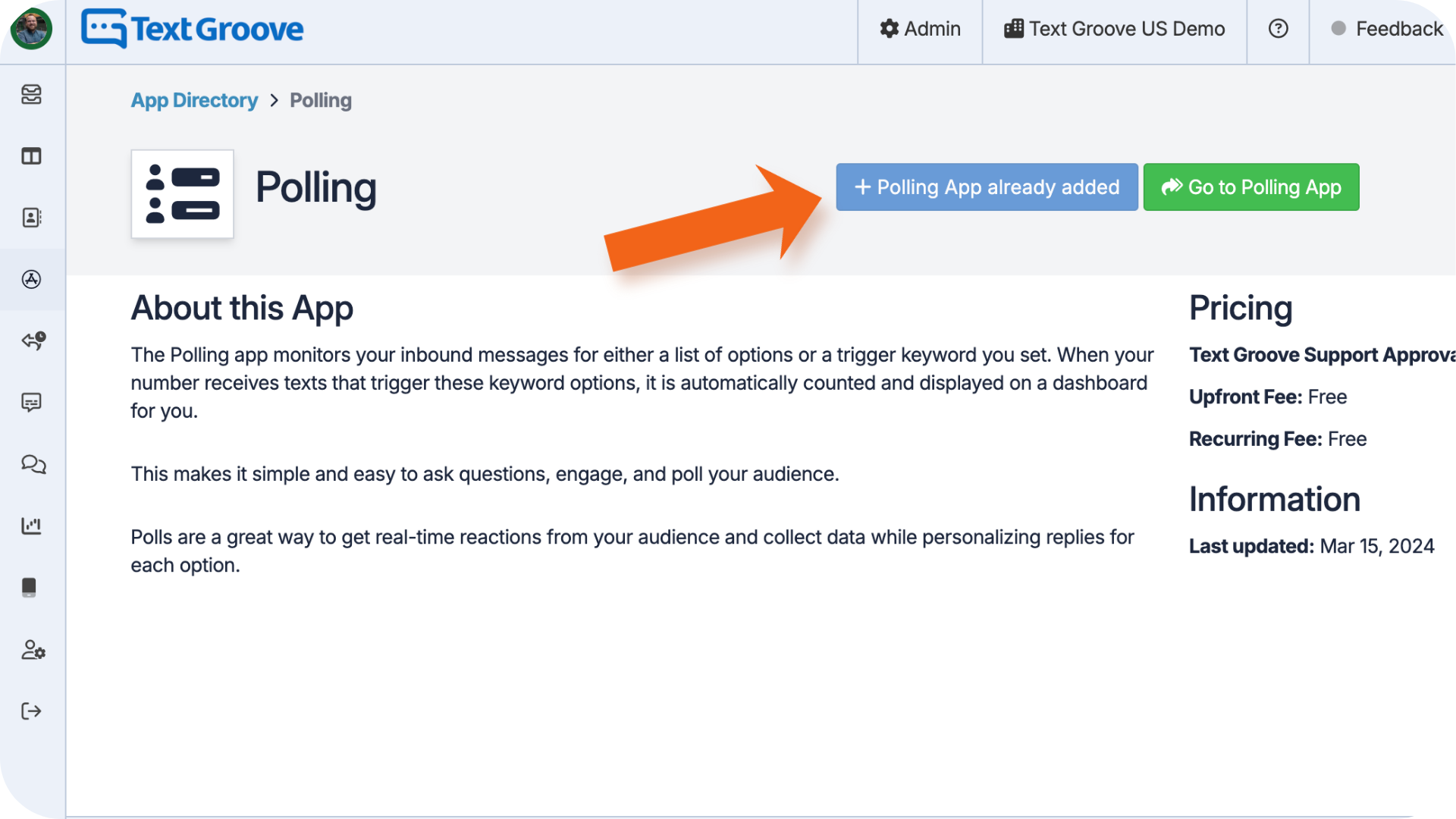
- Add the Polling App by clicking Learn More and then Install App (if app is already installed the button will be greyed out)
- Once installed, you’ll find it in the left-hand menu under Apps.
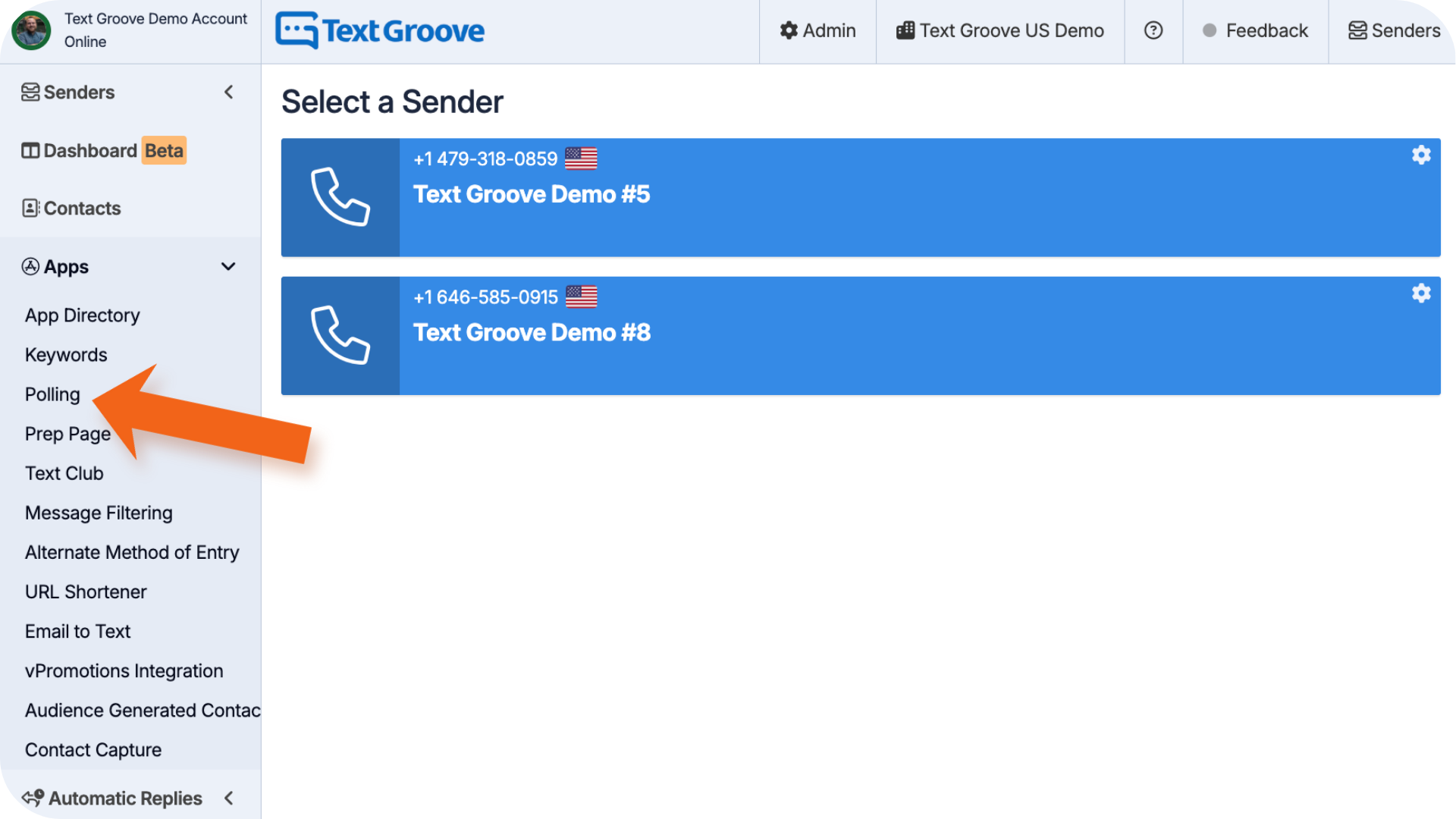
- Click the Polling App to open it.
How to Create a Poll
- Click the green + Create a poll button.
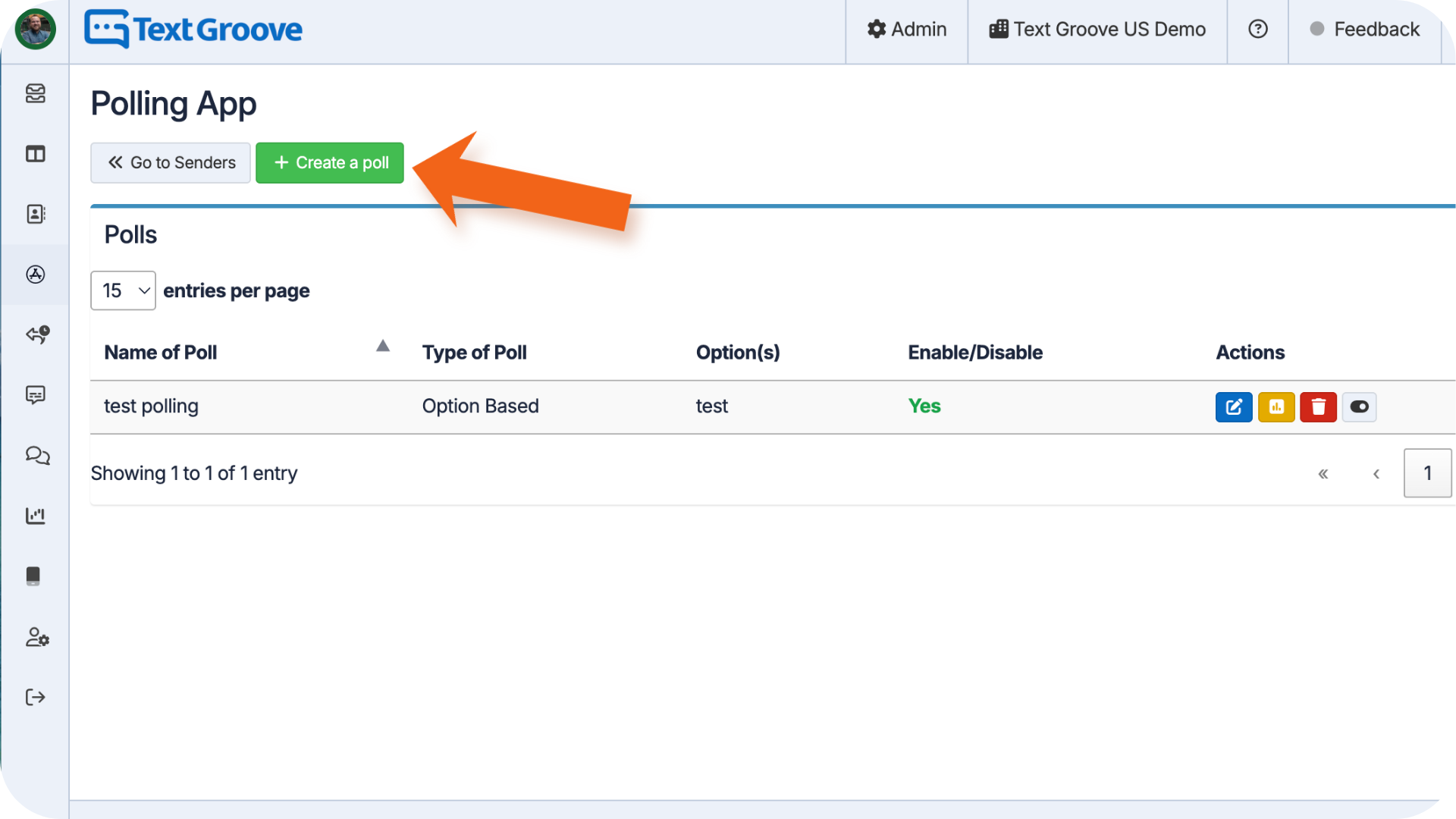
- Fill out each section on the left. On the right, you’ll find descriptions for each setting.
Here’s what each field does:
- Name of Poll – Name it clearly so your team knows what it’s for.
- Assign to Sender – Pick the number you want to use for incoming responses. This dropdown will show available options only.
- Mark Incoming Messages as Read – Poll responses will be marked as read in your Main Sender Window.
- Disable Instant Incoming Messages – Use this if you don’t want your inbox to update live with every vote.
- Hide Messages from Interface – Hide poll responses from listener profiles under that number.
- Disable External Notifications – Prevents responses from triggering any email alerts or webhook actions.
Choose Your Poll Type
- Keyword Poll – Listeners send a keyword followed by their answer. New answers get tracked automatically.
Example:
You ask: “Text Vote and tell us your favourite Top 40 artist (one word only).”
A listener texts: Vote Taylor
“Taylor” becomes a tracked answer in your poll.
Other examples:
Vote Drake
Vote Beyoncé
Vote Doja
This method accepts unlimited answer options.
- Option Poll – You define the possible answers ahead of time. Listeners must choose from those options.
Example:
You want to know who’s the current pop favourite. Set the options as:
- Drake
- Taylor
- Beyoncé
- Doja
Listeners vote by texting one of those words.
Autoreply Message – This is the message listeners will get after submitting a valid vote.
3. Once your poll is ready, click Create Poll to launch it.
Note: You can edit a poll anytime by clicking Edit Poll beside its name.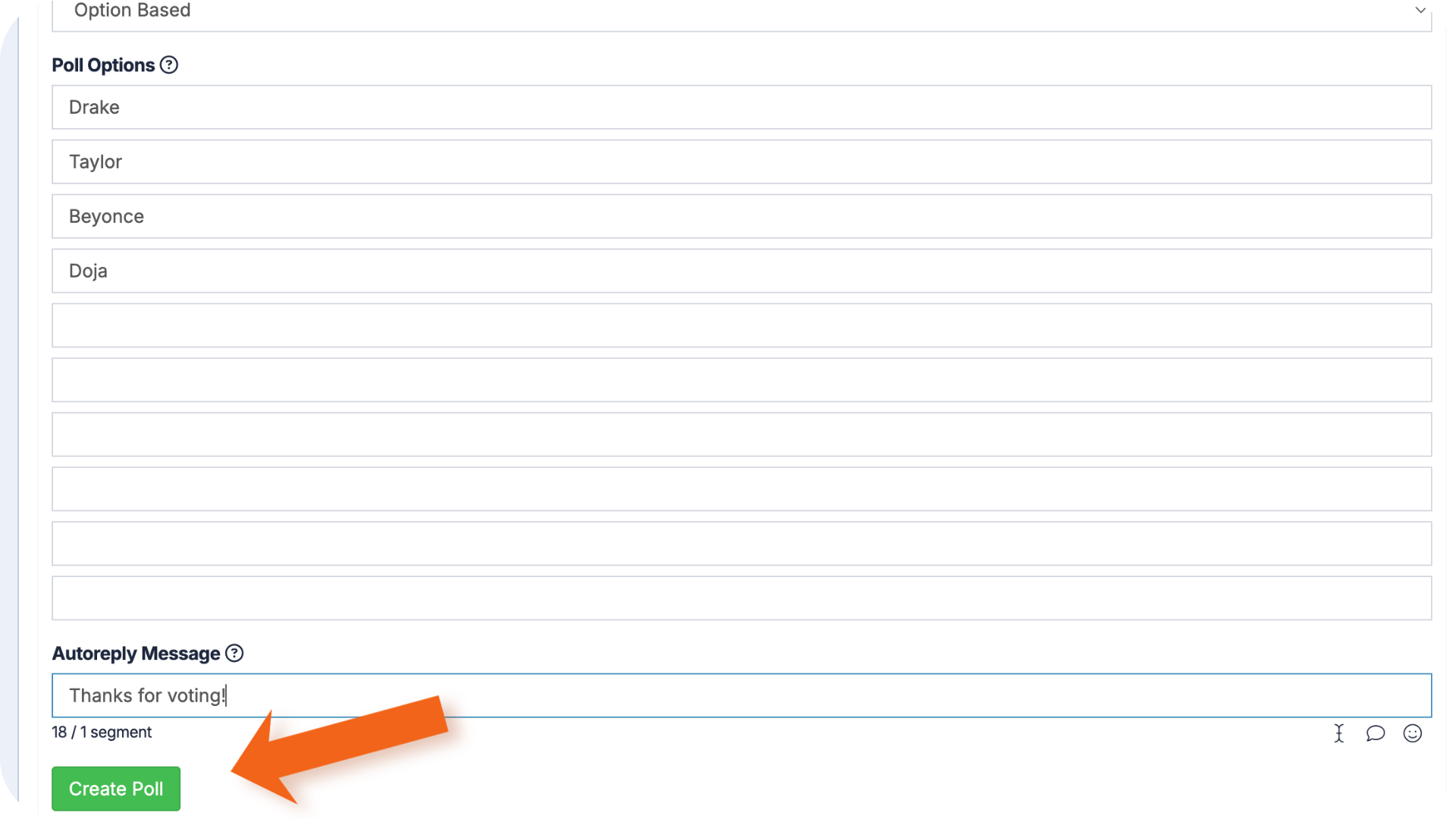
Viewing Poll Results
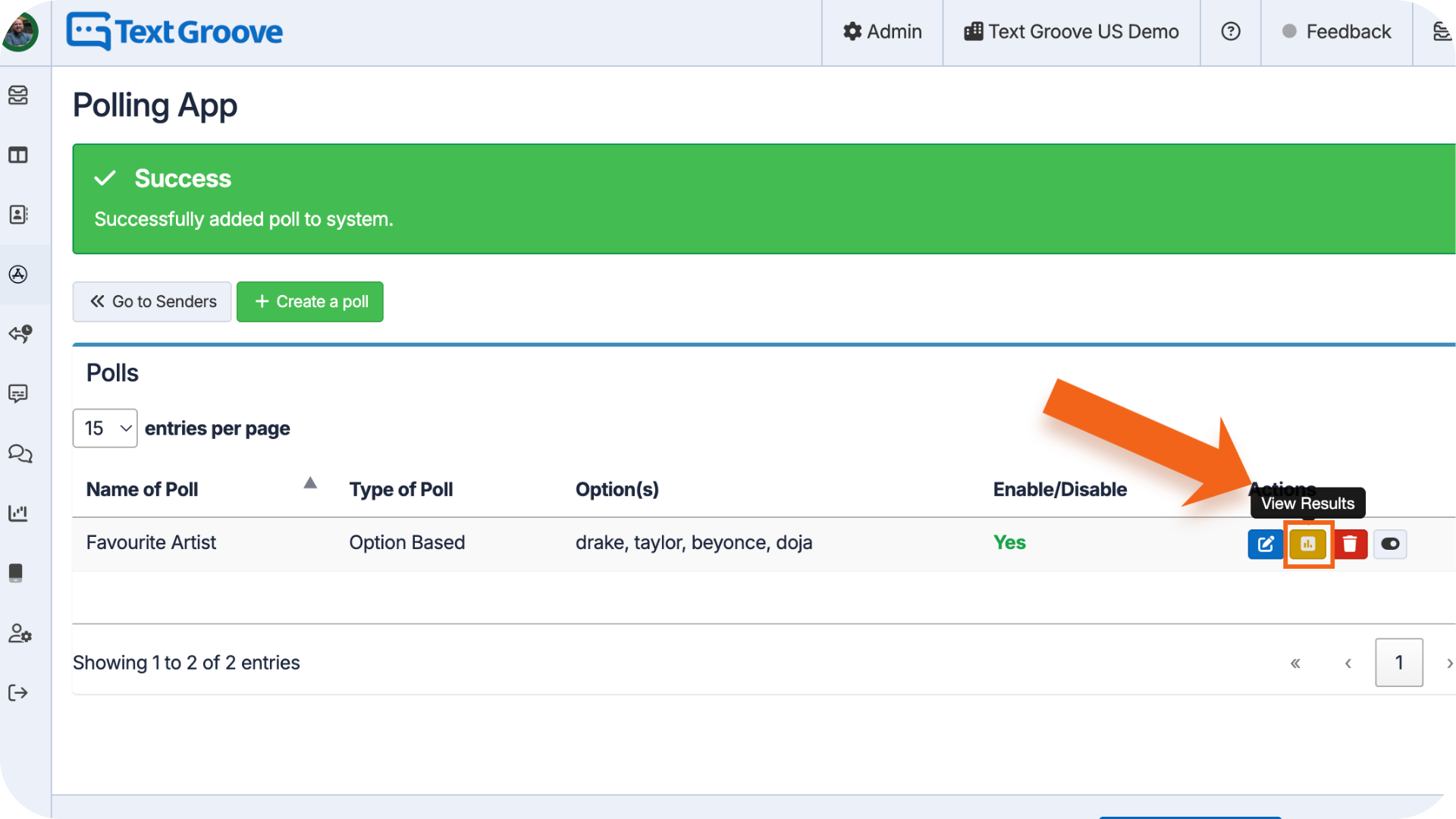
- Click the yellow View Results icon beside your poll to see real-time voting data as it comes in.
Disabling or Deleting a Poll
When you’re finished with a poll:
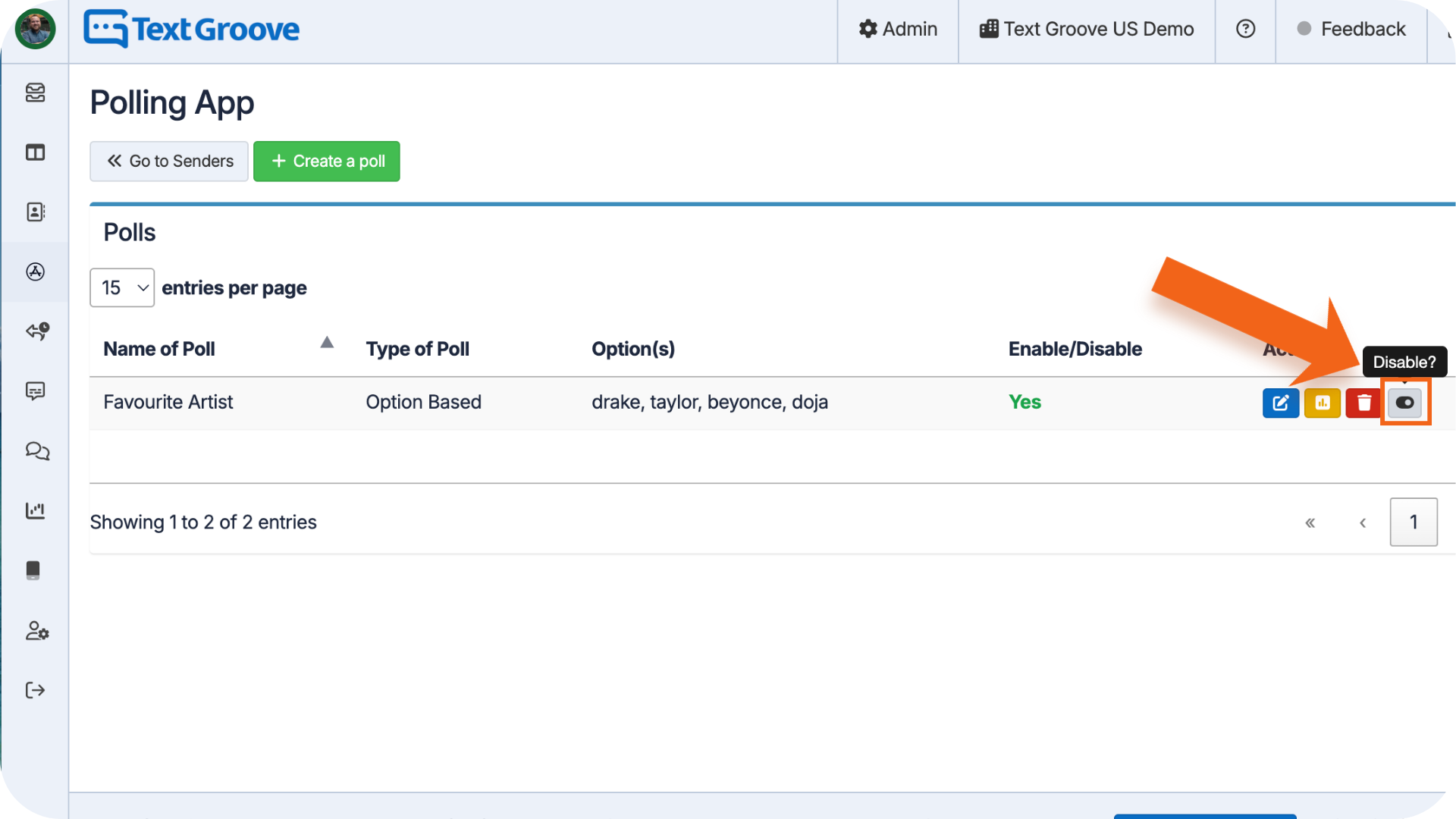
- Click Disable (grey toggle) to stop collecting responses.
- Click Delete Poll (red button) to remove it entirely.
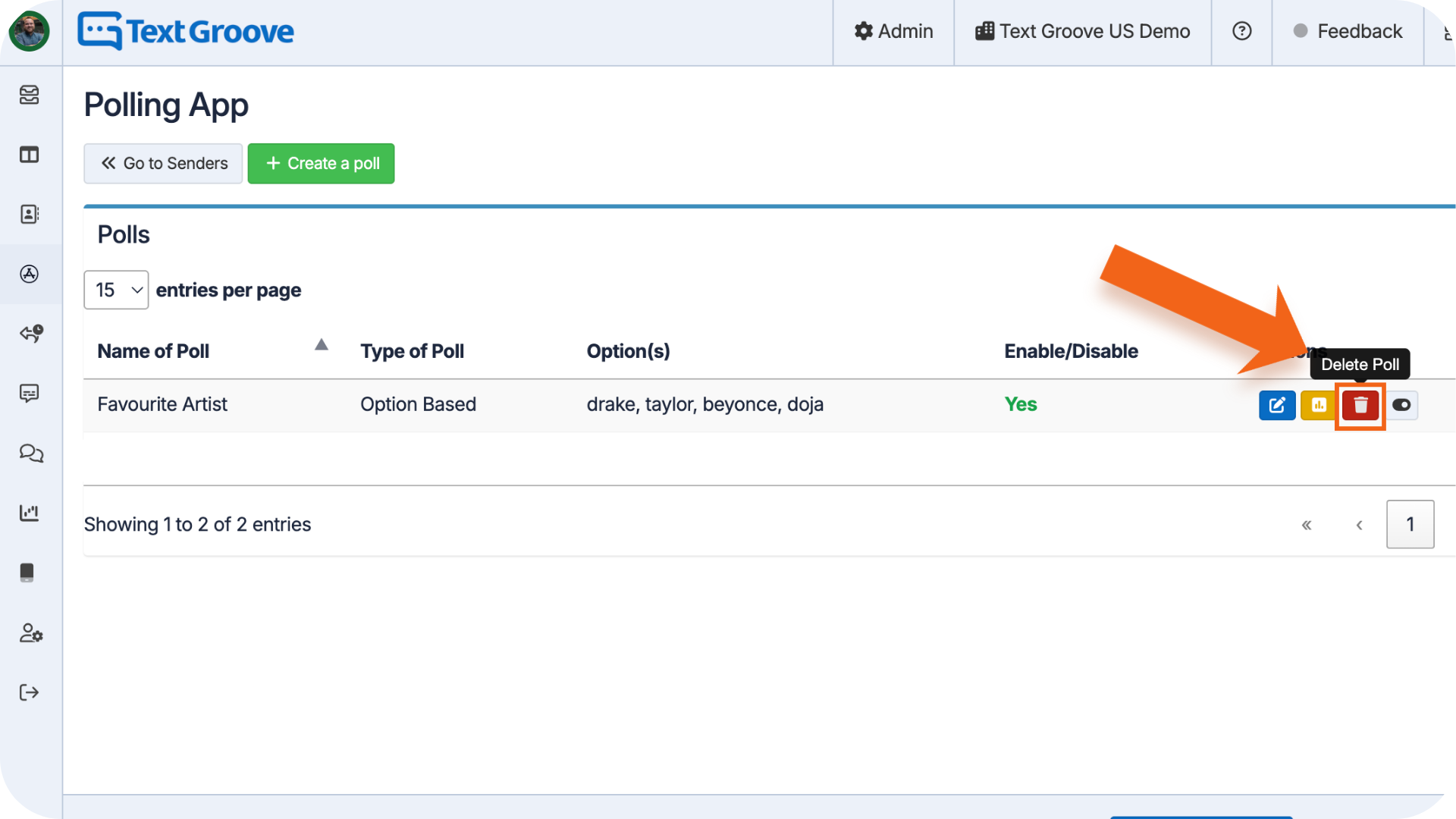
Polls will keep collecting messages unless they’re turned off.
Was this article helpful?
That’s Great!
Thank you for your feedback
Sorry! We couldn't be helpful
Thank you for your feedback
Feedback sent
We appreciate your effort and will try to fix the article