Overview
Keywords are one of the most popular features in Text Groove. You can use them for contests, auto-replies, or to trigger specific actions in the platform. Keywords are unlimited, so feel free to use them as often as you need. Each keyword can be customized to match your campaign or use case.
How to Add a Keyword
- Go to the Keywords App in the left-hand menu.
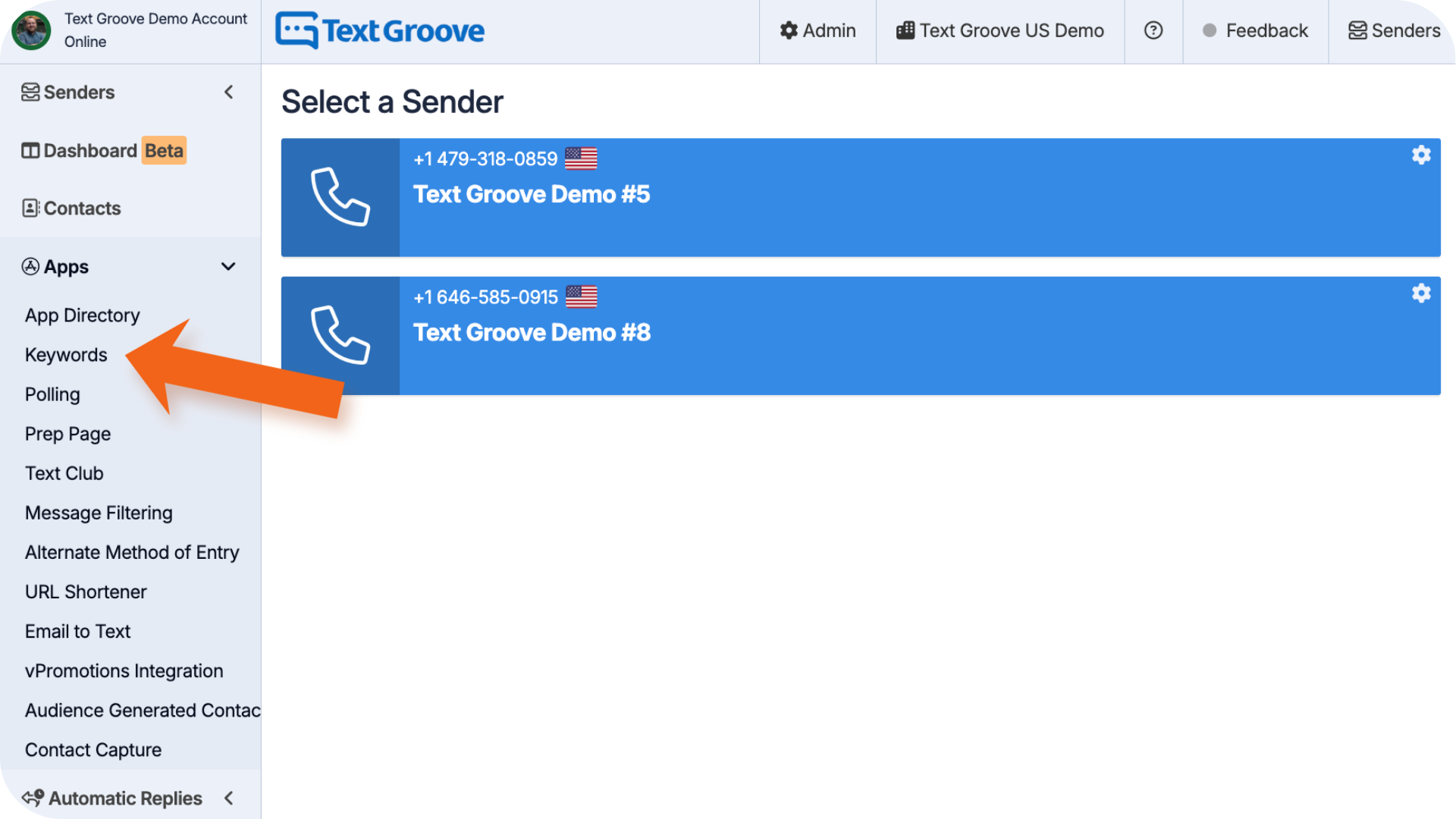
- Click the green Add Keyword button.
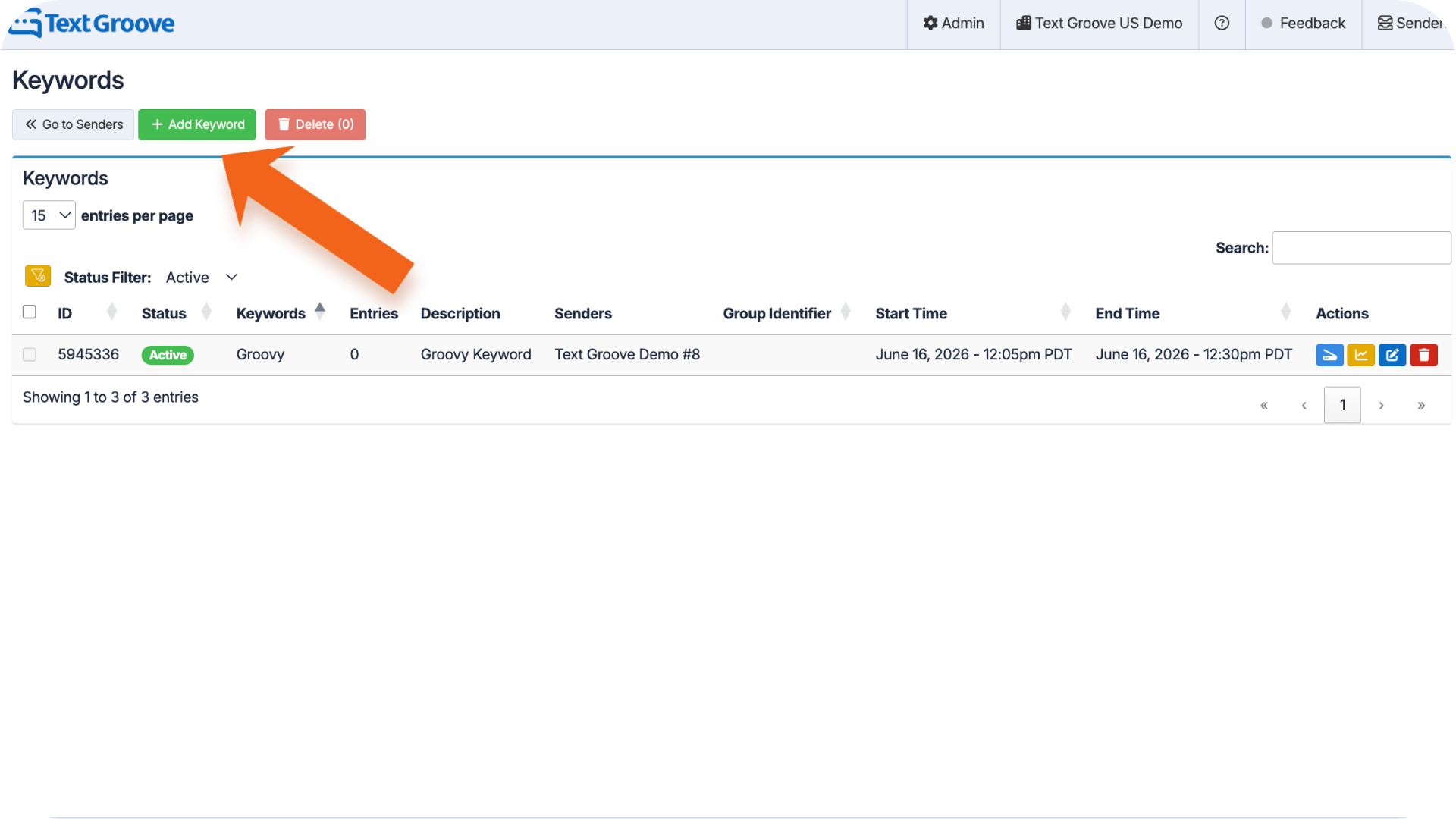
You'll see a setup screen with fields on the left and descriptions on the right. Fill out each section to build your keyword.
- Select Sender – Choose the number that the keyword will send from. Most users will only see one option.
- Keyword – This is the word listeners must text in to trigger a response. Keywords are not case-sensitive. You can include multiple words.
- Description – This is for internal use only. Use it to describe the purpose of the keyword, especially if you're running several at once.
- Match Type –The default is Exact Match, which captures the keyword anywhere in the incoming message. Learn more in our Keyword Match Types guide.
- Start Time and End Time – Set the time window for when the keyword should be active. The time zone follows your computer’s settings.
- Auto Reply Message– Choose how the system responds after a listener texts in:
- No Reply
- Custom Text
- Text from URL (advanced - contact us if you need help setting this up)
- Example (Custom Text)
“Hey [first_name], thanks for entering! You’re now in the draw for our Country Countdown VIP Passes.” - Group Identifier
Use this to group multiple keywords together for shared tracking. Ideal for contests that use more than one keyword across different days. - Contest Mode
This should be turned on for any contest-related keyword. Choose one of the following:- One Entry Only - Each listener can only enter once for the duration of the contest.
- Limit Re-entry Within a Given Time Period - Set a cooldown period between entries. You can define the cooldown in minutes, hours, or days.
When Contest Mode is on, you’ll see a field for the Repeat Message Reply. This is what the listener will receive if they try to enter again before the cooldown is over.
Example (Repeat Message Reply)
“You’ve already entered today’s Country Countdown contest. Good luck!”
- Age Gate
You can turn on Age Gating if you are giving away a prize that requires a certain age requirment. You can:- Set the minimum age required for entry.
- Set the Request Type; the format which people will be required to enter their age (Date of Birth or Yes Confirmation)
- If Date of Birth Confirmation chosen, you can then select the date format you want the end user to text in, in order to enter the contest.
Additional Options
- Mark Incoming Messages as Read - Keeps your inbox clean.
- Disable Instant Incoming Messages - Prevents rapid updates from appearing in real time.
- Hide Message from Interface - Removes messages from the inbox and auto-enables the two settings above.
- Disable External Notifications - Stops keyword-triggered messages from sending emails or webhooks.
- Allow Scheduled Automatic Replies - Ensures that scheduled auto replies are sent even after a keyword is triggered.
Tip: We recommend selecting Hide Message from Interface to keep your inbox focused and free of entry clutter.
3. Once your setup is complete, click Add Keyword.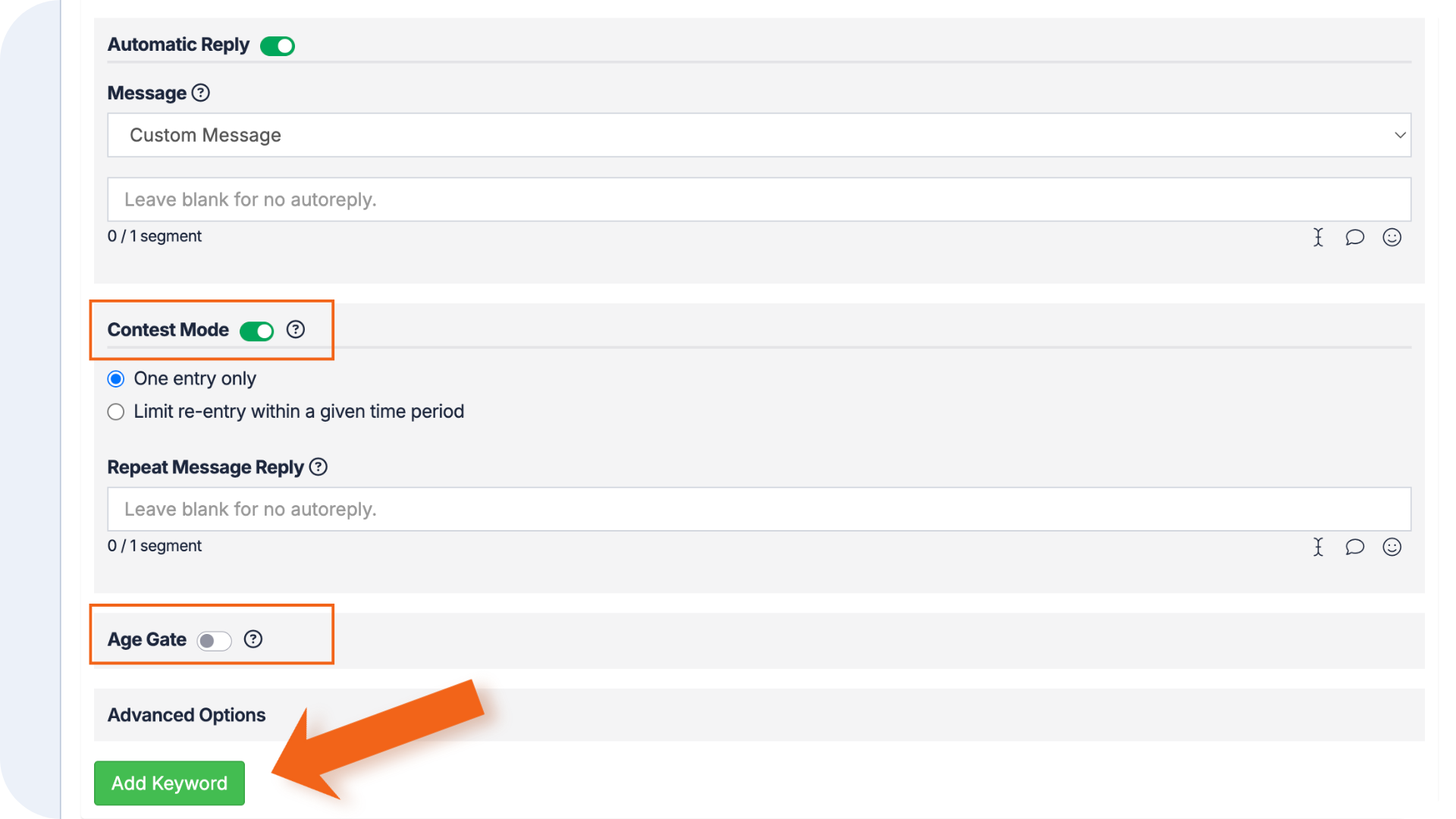
How to Copy, View Stats, Edit, or Delete a Keyword
From the Keywords App, go to your keyword list. Under the Actions column, you'll see options to:
- Click the light blue button to copy a keyword
- Click the yellow button to view stats
- Click the dark blue button to edit
- Click the red button to delete
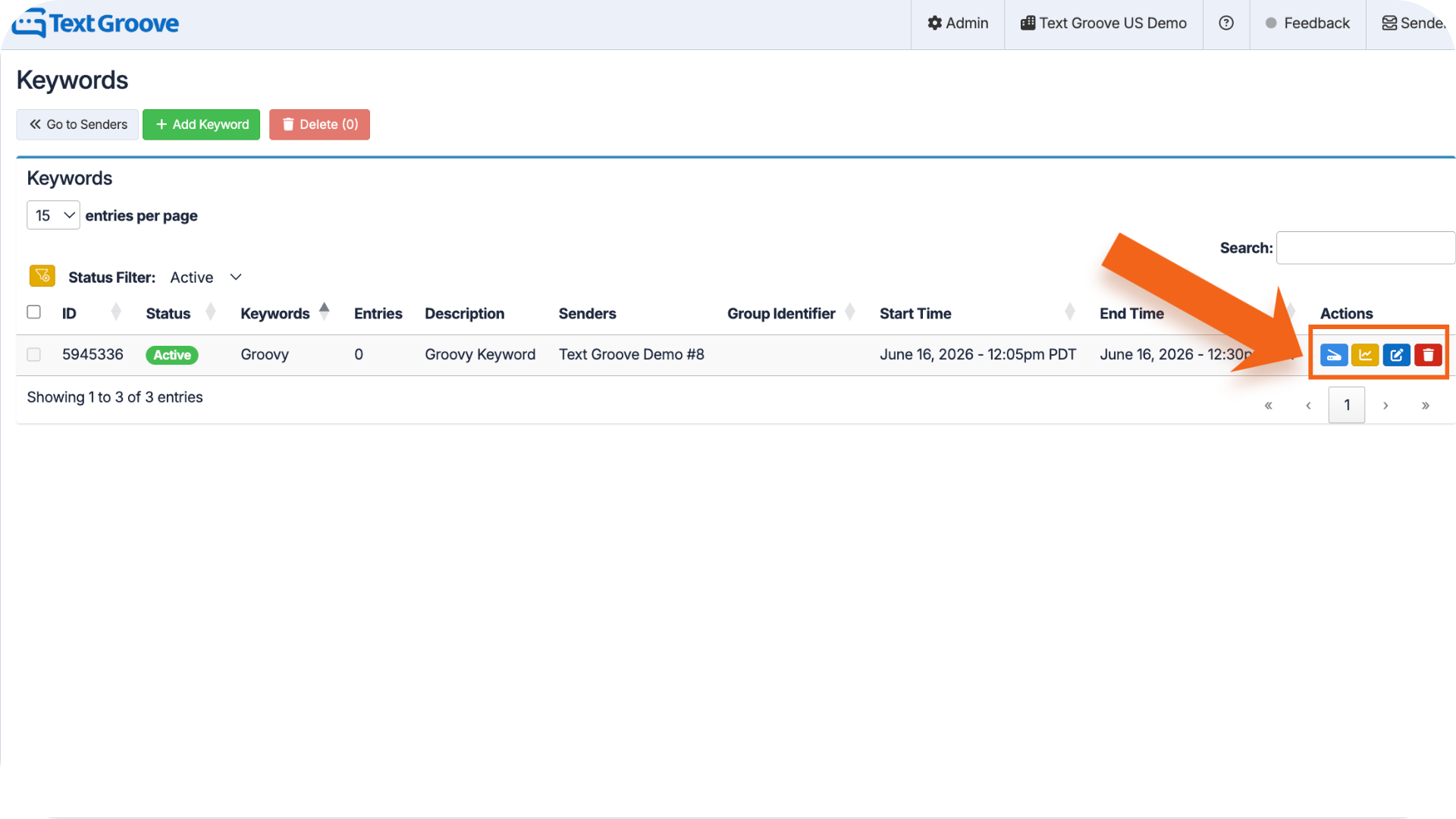
These tools let you update, re-use, or report on keywords whenever you need.
Was this article helpful?
That’s Great!
Thank you for your feedback
Sorry! We couldn't be helpful
Thank you for your feedback
Feedback sent
We appreciate your effort and will try to fix the article