Overview
Adding a new user to your Organization is easy. You will need the new users work email address, and if it's the first organization you're adding them to, you'll need to enter their name as well.
Adding a New User
First, you will need to be logged in as an Admin on the account, if you do not have Admin access, you will need permission from the admin on the account to become one. Please contact your supervisor or admin on the account to get in touch with us to make this change. You can contact us directly at support@textgroove.com
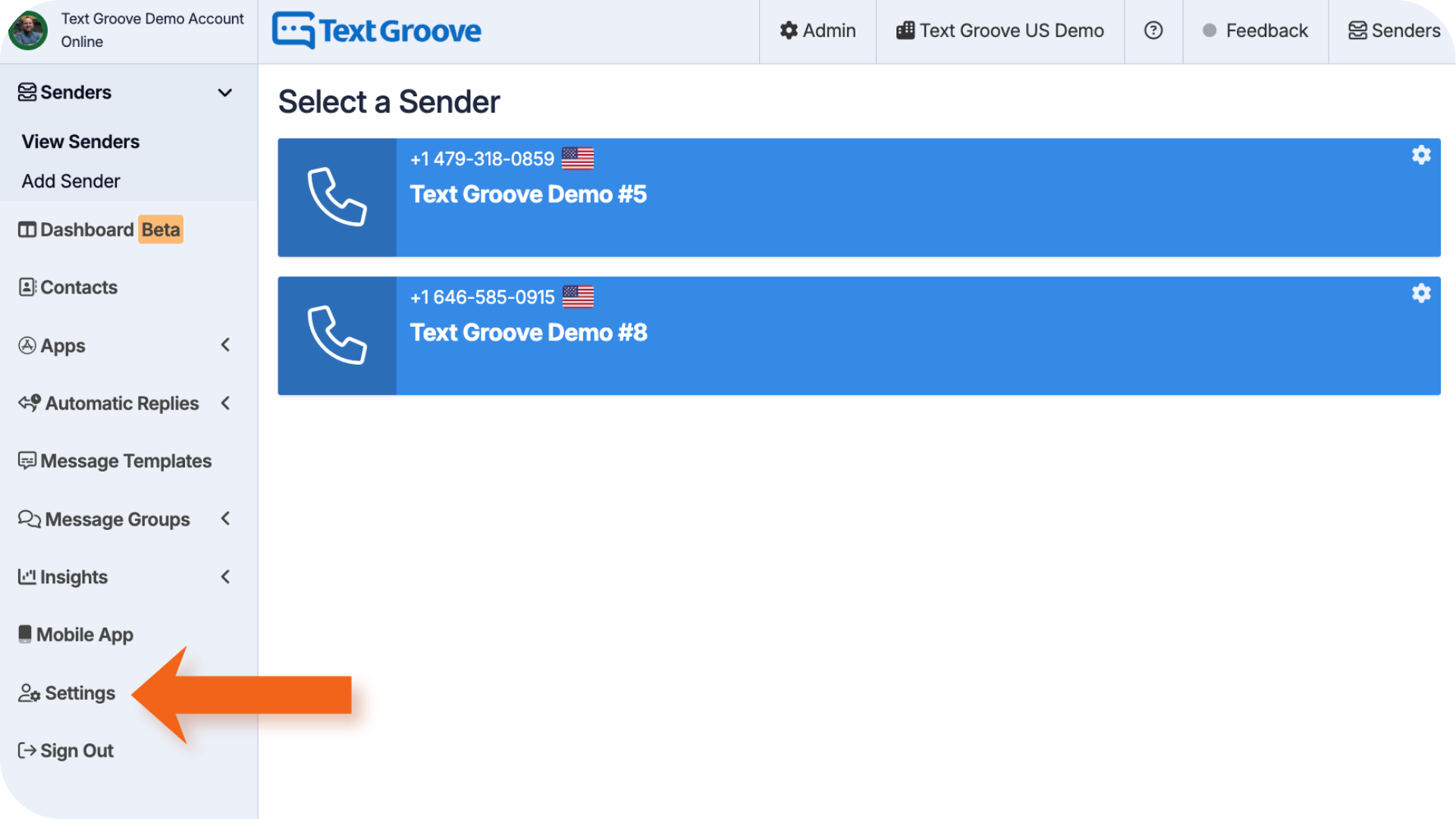
- Once logged in as an Admin, you will need to switch into the correct station / organization that you'd like to add the new user to.
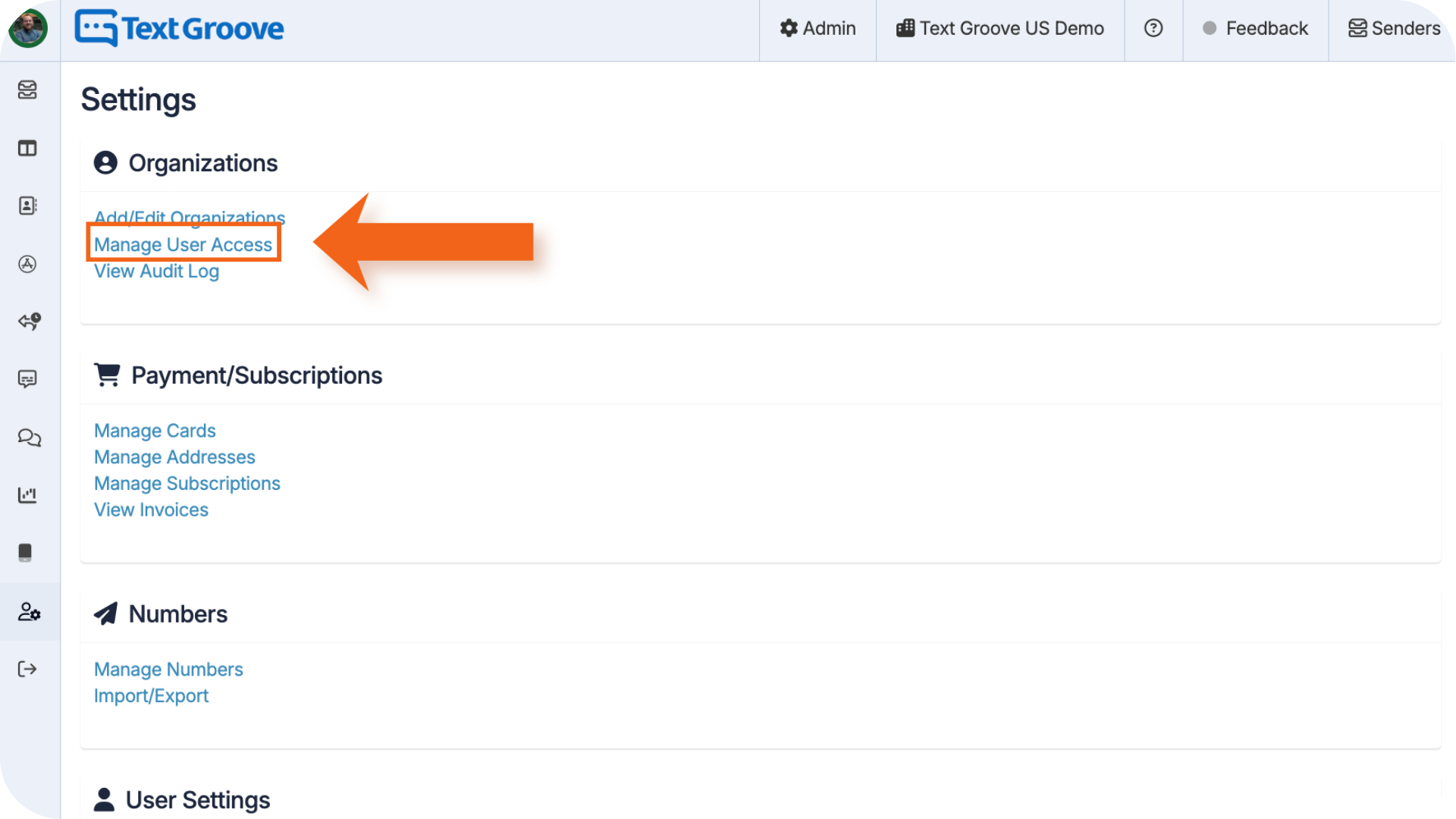
- Browse to Settings in the left side menu, and then choose Manage User Access under the header Organizations
3. Then, on this page, choose Add User to Organization.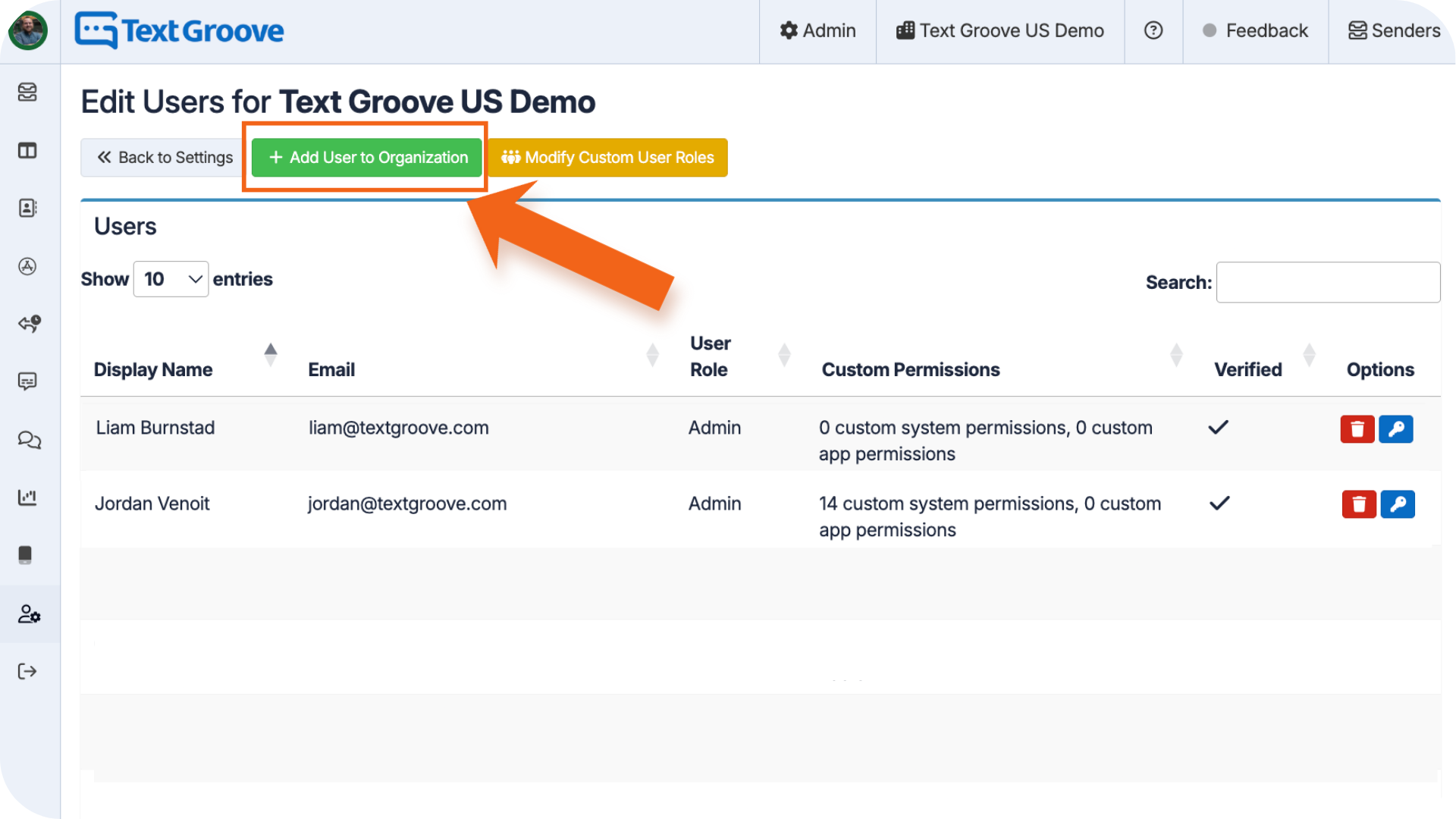
4. Finally, enter the Email Address of the user you'd like to invite and set their User Type.- If this user is brand new to Text Groove, you'll also be prompted to enter their name after you click Add User.
- Each User Type comes with specific permissions for each use case within the Text Groove application.
- The User Types are Admin, Manager, Accountant and User. The two we typically suggest to use are Admin and User.
Once this is done, your new user will receive an email invitation to Text Groove, with a link to set up their account.
Was this article helpful?
That’s Great!
Thank you for your feedback
Sorry! We couldn't be helpful
Thank you for your feedback
Feedback sent
We appreciate your effort and will try to fix the article