Overview
Invite team members to your station by adding them as users. Each user can have their own level of permissions set or user custom user roles crearted. All you need is their work email address, and their name.
Adding a New User
To get started, make sure you're logged in as an Admin. Only Admins can add users to an organization.
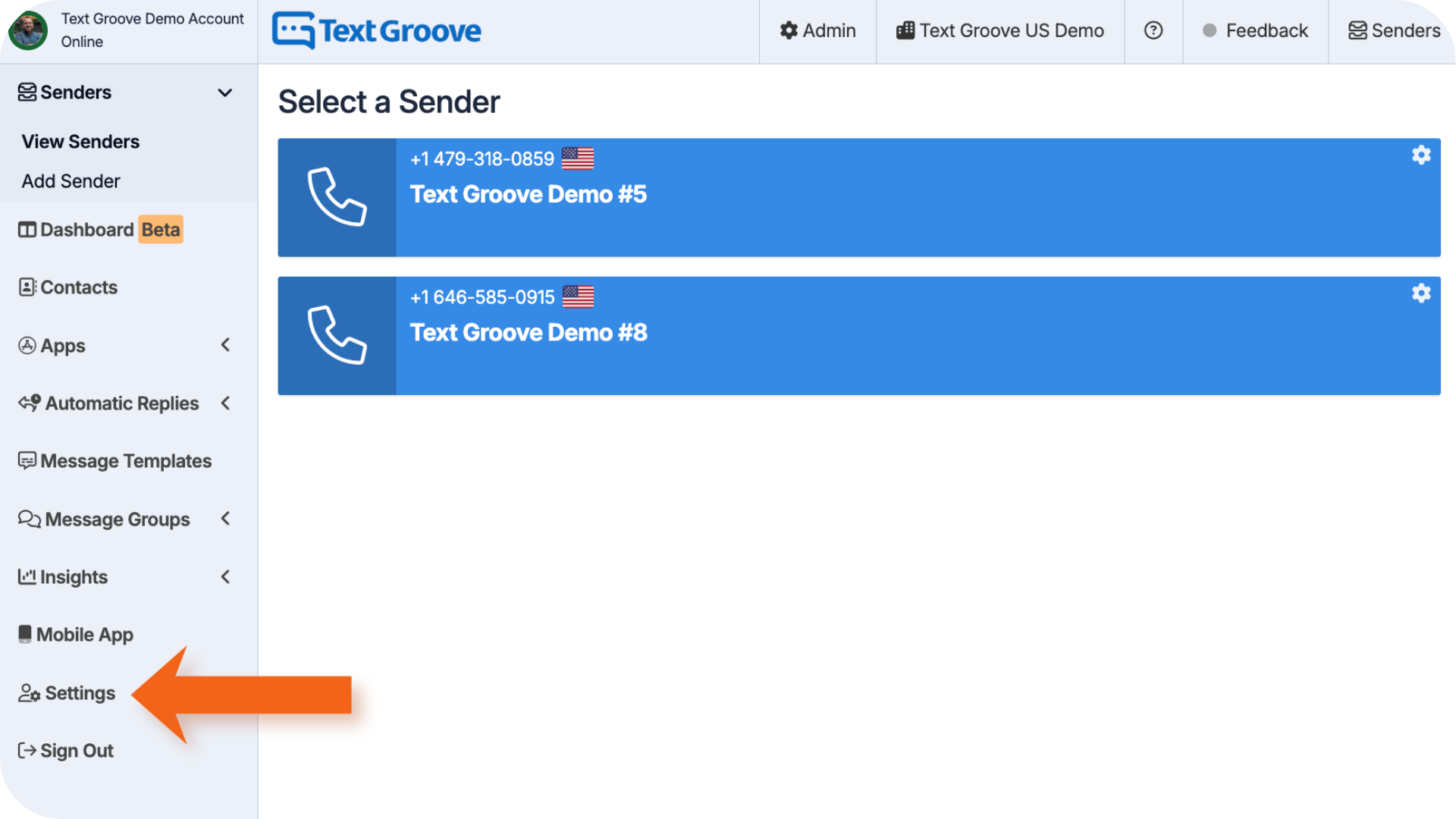
- Switch to the station where you want to add the user.
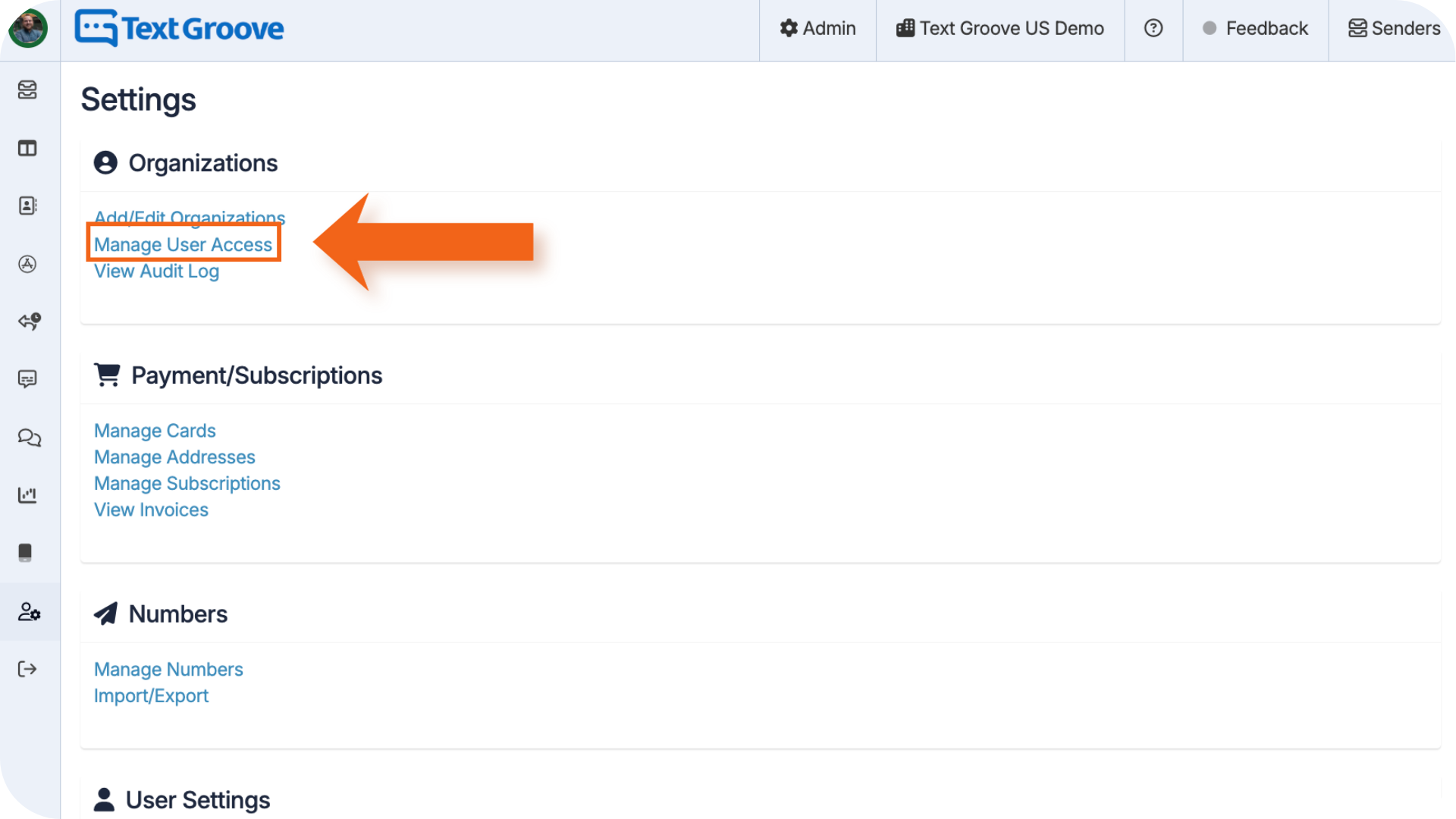
- Go to Settings > Manage User Access
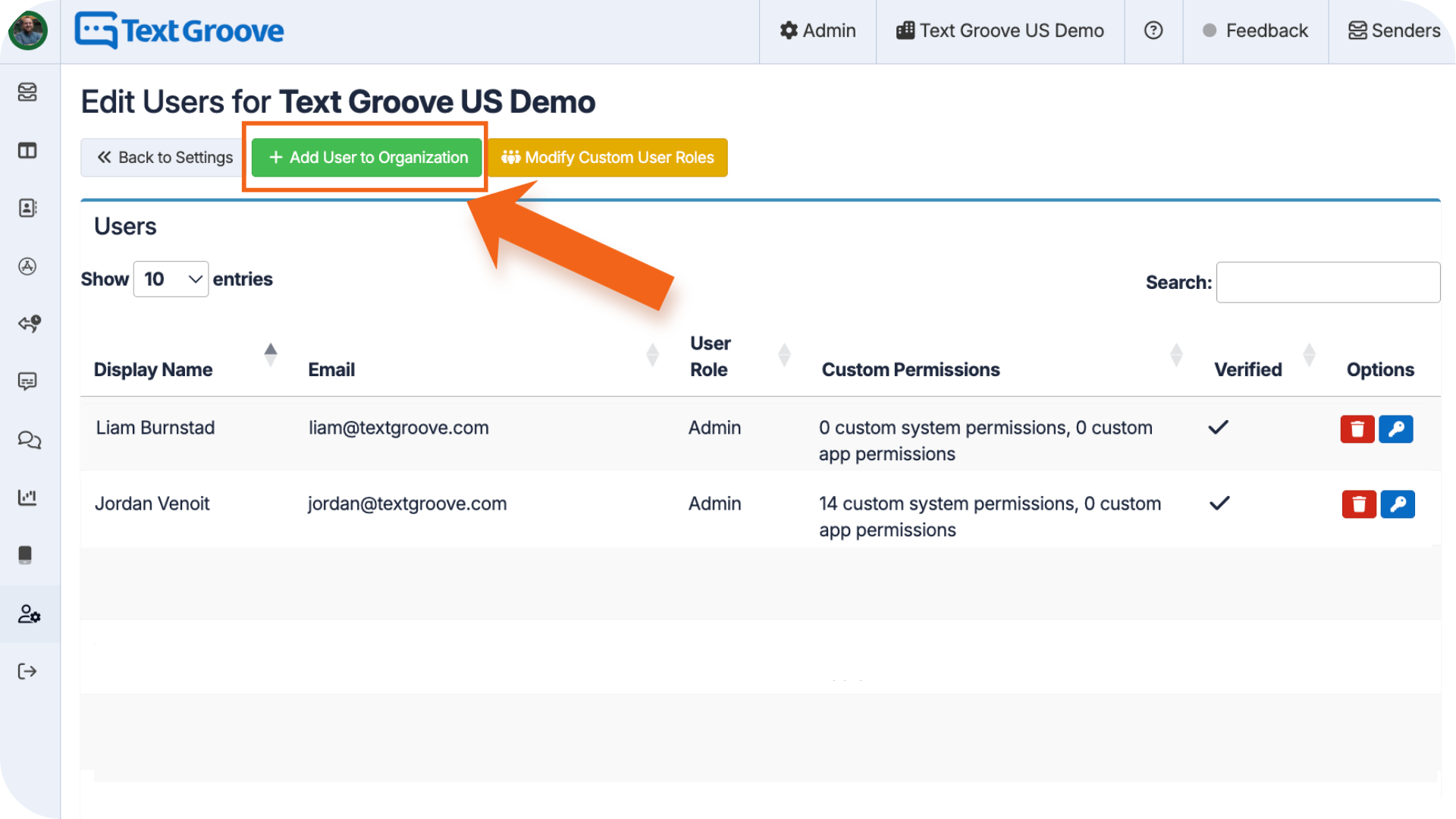
- Click Add User to Organization
- Enter their Email Address and select a User Type
- If they’re brand new to the platform, you’ll be prompted to enter their name
- If they’re brand new to the platform, you’ll be prompted to enter their name
Once added, the new user will receive an email invite to verify their email and set up their account. Clicking on this link in their email will then prompt them to create a new user password for that account.
User Types
Each type comes with different permissions.
- Admin - Full access
- Manager - Elevated access
- Accountant - Billing only
- User - Standard access
For detailed info on each specific setting for User Roles, see our TG User Differences spreadsheet. We find that most clients use Admin for management and User for non-management positions.
Customer User Roles
If someone on your team needs special privilages that are different or fall out of the standard User Types, you are also able to create Custom User Roles. To do so, click the "Modify Custom User Roles" button along the top of the page on the Manage Users page. Then Create a New User Role; Name it, and adjust any settings you need adjusted for that specific user. Once complete, click the "Create Roll" button at the bottom of the page.
FAQs
- Who can add users to my station? Any Admin on an account is able to Add, Edit, or Remove other users within a Text Groove Organization.
- Why can't I just request access myself? For security reasons and to protect your Text Groove account, a previously added Admin will need to be the person to make changes and Manage Users on that Organization.
- Why do I get an error when I click "Manage User Access" in Settings? As only Admin are able to Manage Users on an account, anyone who is not an Admin will get an error when trying to Manage Users on that account. If you get an error, you are not setup as an Admin on that account.
Still confused? Don’t see what you’re looking for?
Reach out to us at support@textgroove.com for further assistance.
Was this article helpful?
That’s Great!
Thank you for your feedback
Sorry! We couldn't be helpful
Thank you for your feedback
Feedback sent
We appreciate your effort and will try to fix the article