Overview
Do you have something to say, but now isn't quite the time to say it? Perhaps a listener has a birthday or special event coming up? Schedule a message 1:1 in advance to send automatically on a specific date and time to users.
Scheduling Messages
When sending messages 1:1 in the Main Sender Window of the Text Groove, you can schedule a message:
- Click on a profile to open up a conversation in the main Chat Panel.
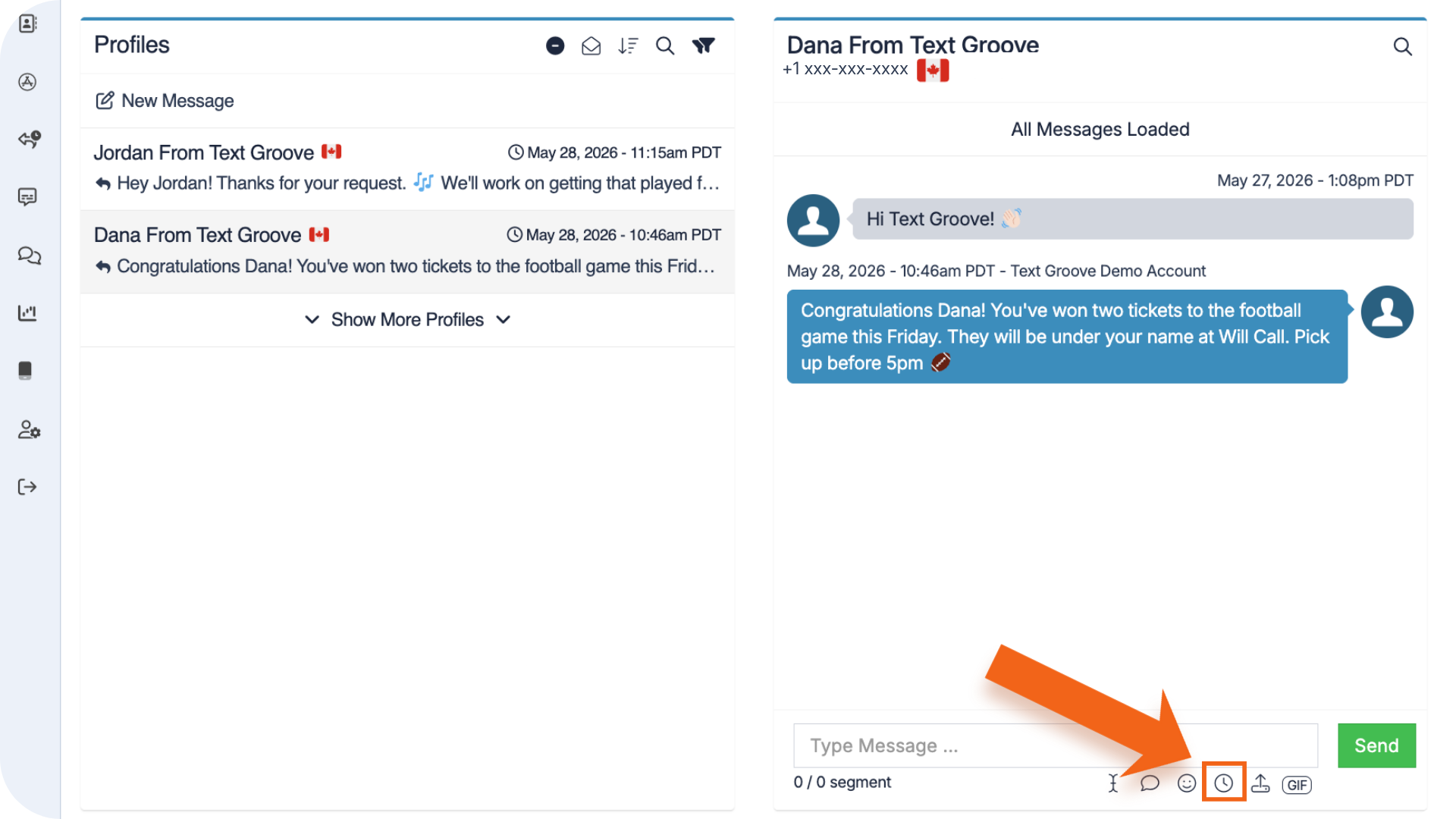
- Click the clock icon at the bottom of this panel
- This will open up the settings to schedule a message to that particular listener.
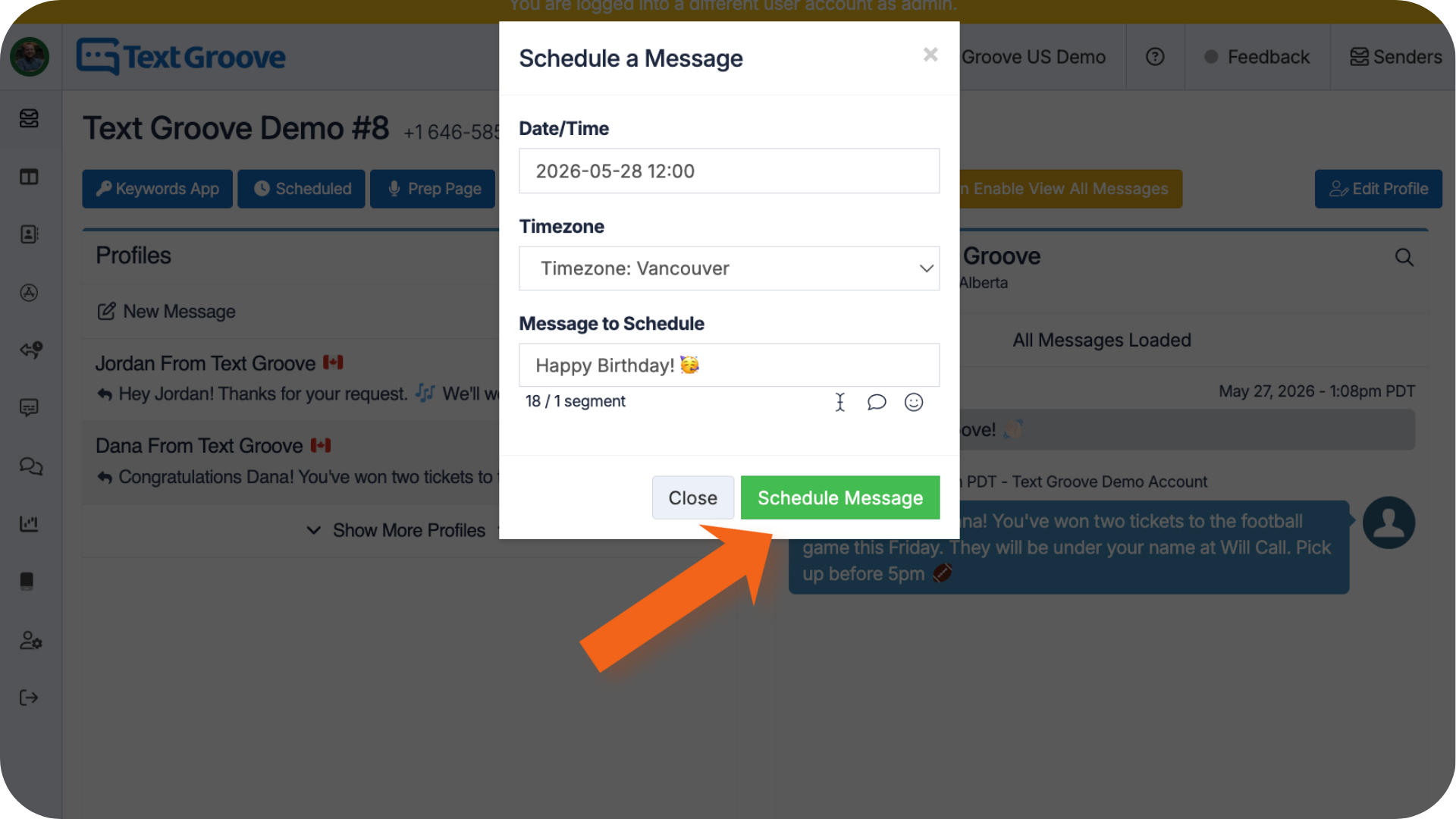
- Set the Date, Time, and Timezone, then write the message you would like to schedule.
- Click Schedule Message or Close at the bottom of this panel. This message will now send automatically on that specific date and time to that listener.
Deleting a Scheduled Message
If you would like to delete a message that you have scheduled:
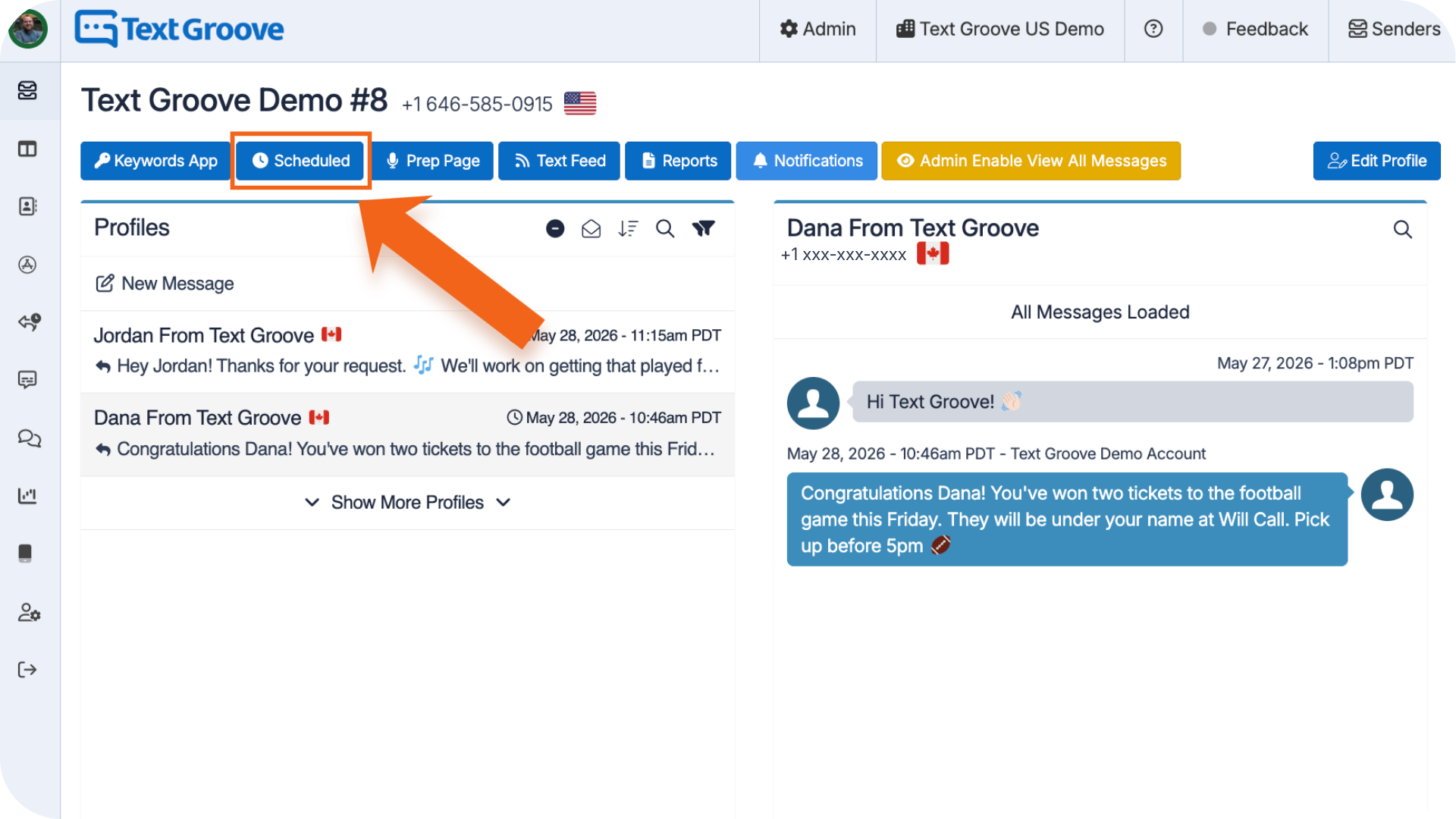
- Click the Scheduled Shortcut Button on the top left side of the Shortcuts Bar. On this page, you can see all your previously scheduled messages, and who they are being sent to.
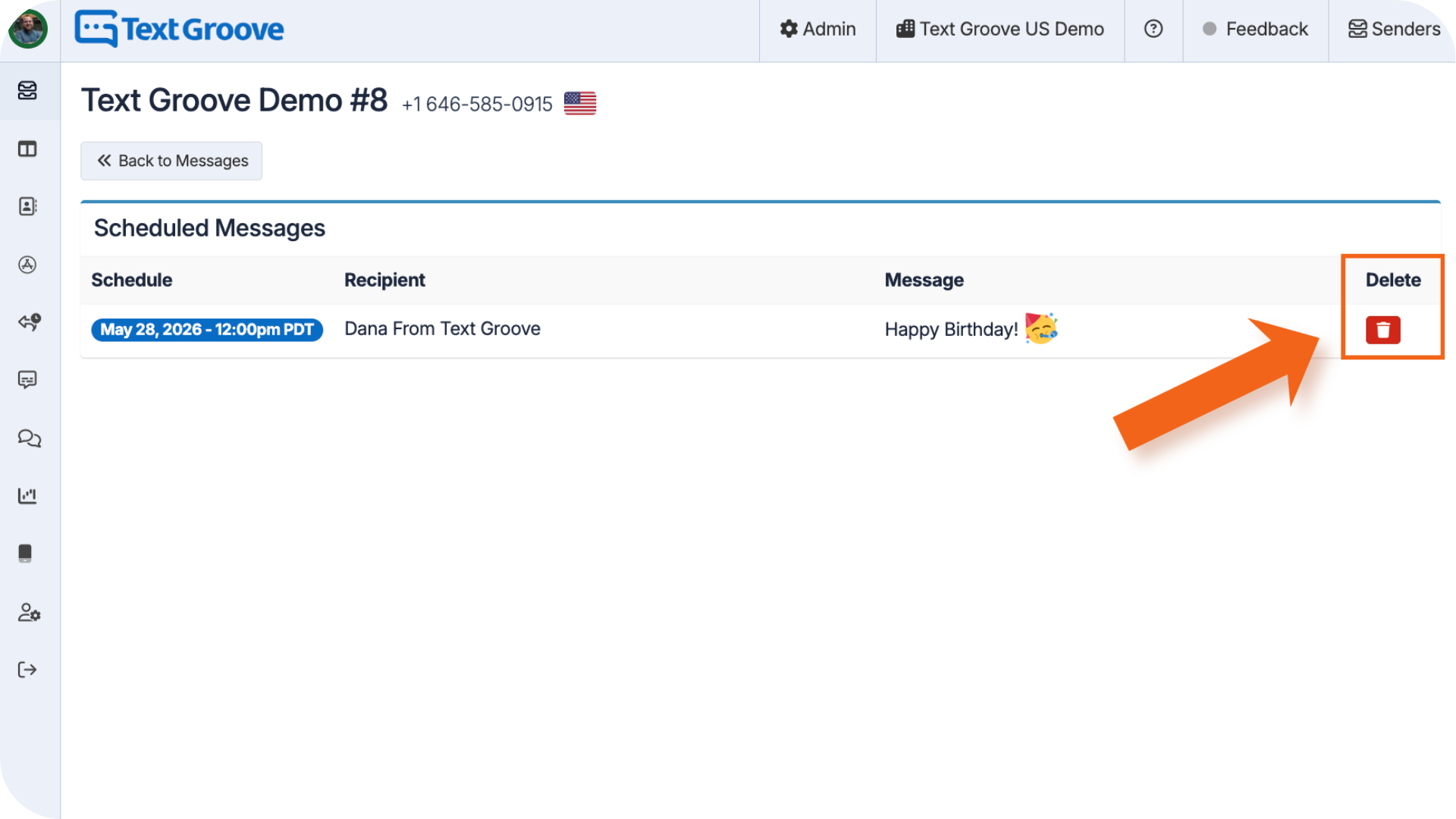
- To delete, just click the red delete button on the right side of the page.
Was this article helpful?
That’s Great!
Thank you for your feedback
Sorry! We couldn't be helpful
Thank you for your feedback
Feedback sent
We appreciate your effort and will try to fix the article