Overview
Text Groove's Reports feature helps you keep tabs on your account activity. Track incoming and outgoing messages, spot trends by hour, week, or month, and explore how your listeners are engaging with your number.
Seeing Your Reports
- Log in to your Text Groove account.
- Head to the Main Sender Window.
- At the top of the page, click the blue Reports icon in the shortcuts bar.
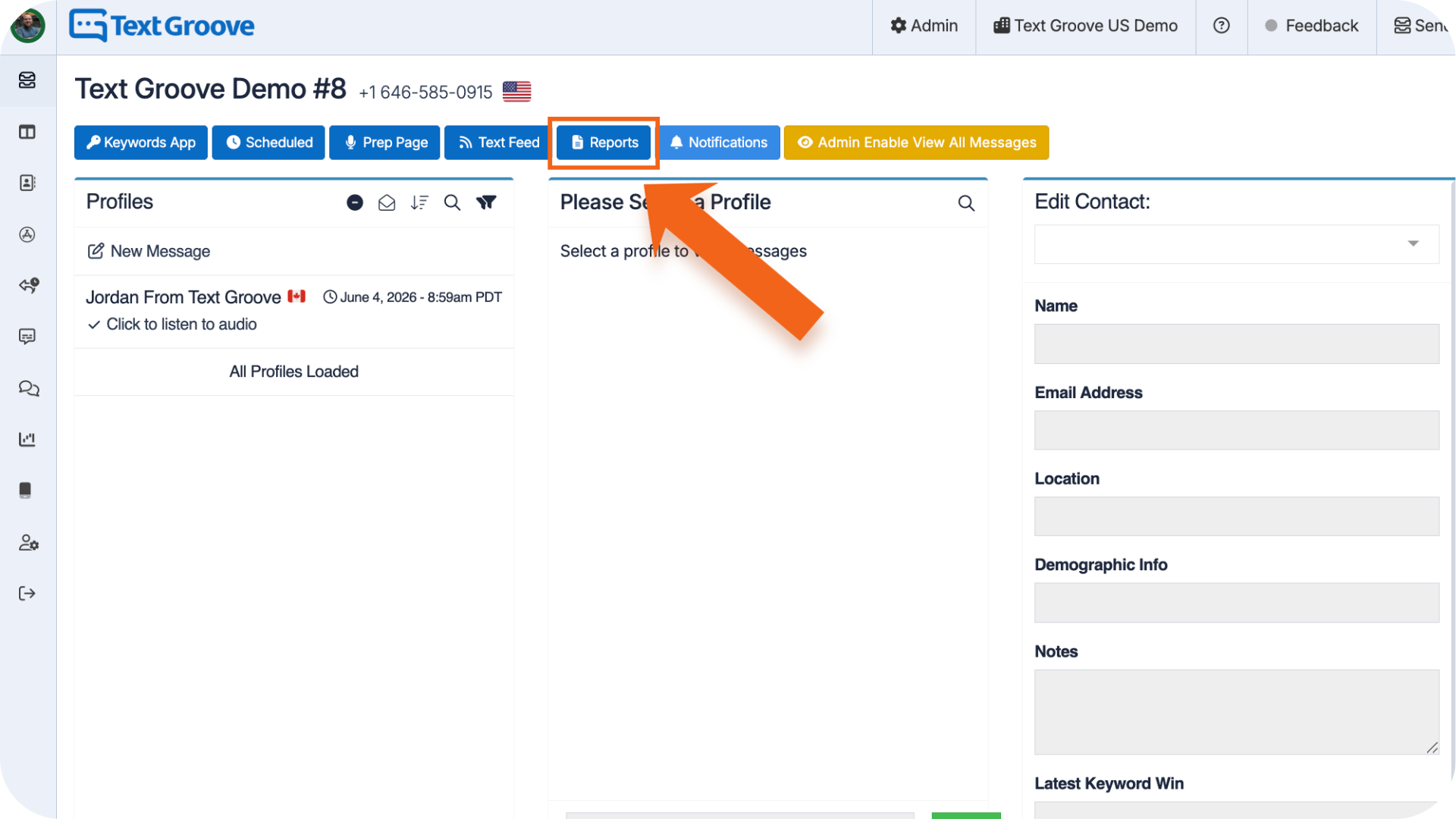
This will take you to the Reports Dashboard.
Reading Your Reports
At the top of the Reports page, you’ll see tabs that break down your data in different ways:
- Messages by Hour
- Messages by Week
- Messages by Month
- Text Engagement
The Text Engagement tab highlights key listener behaviour like:
- Unique Texters - Total individual contacts who texted in
- New Texters - People texting in for the first time
- Re-Engaged Texters - People returning after being inactive
Each report lets you filter by date range. Just click the date selector to choose the timeframe you want to explore.
Exporting Reports
Want to keep a copy or dig deeper into the data? You can export any individual report:
- Hover over the report tile you want.
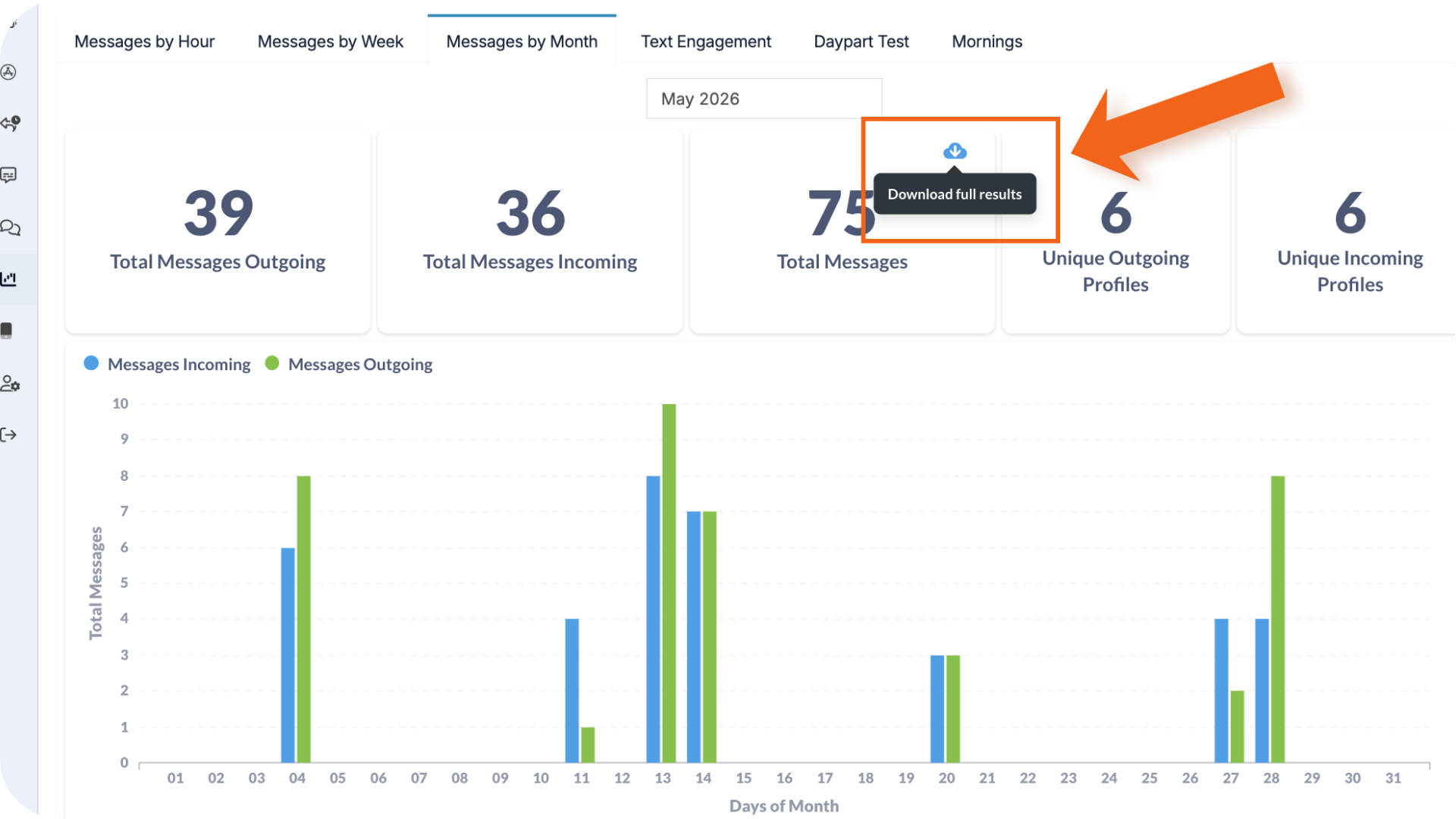
- Click the Download Full Results icon that appears.
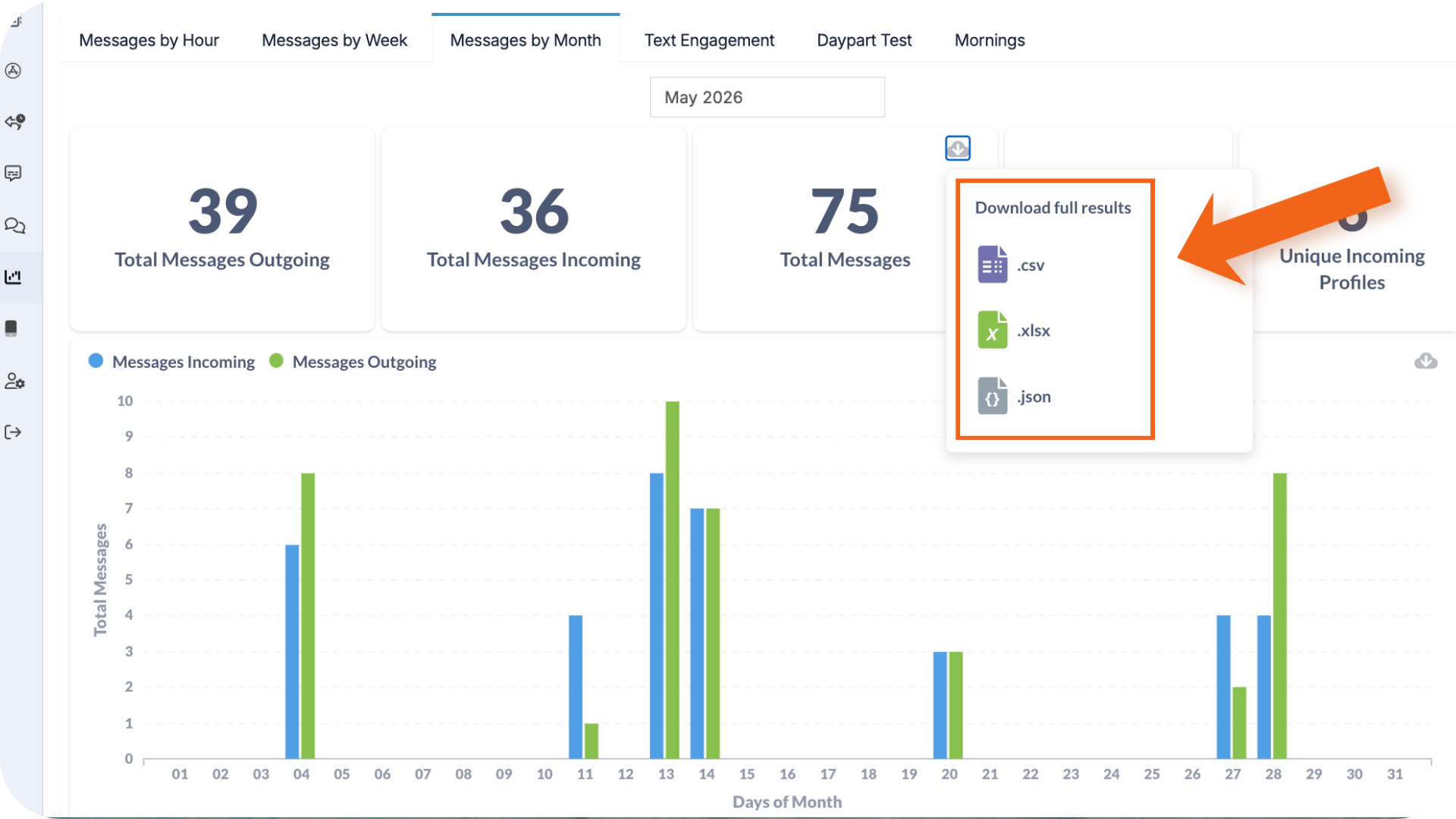
You will have the option to download the report as a .CSV file, .XLSX file, or a .JSON.
Was this article helpful?
That’s Great!
Thank you for your feedback
Sorry! We couldn't be helpful
Thank you for your feedback
Feedback sent
We appreciate your effort and will try to fix the article